

Everything in Pairing is about one thing: a schedule that holds together.
What Pairing does today, screen by screen, and what's coming soon. Every recording uses a made-up agency called Sagebrush Behavioral Services.
01 · The week
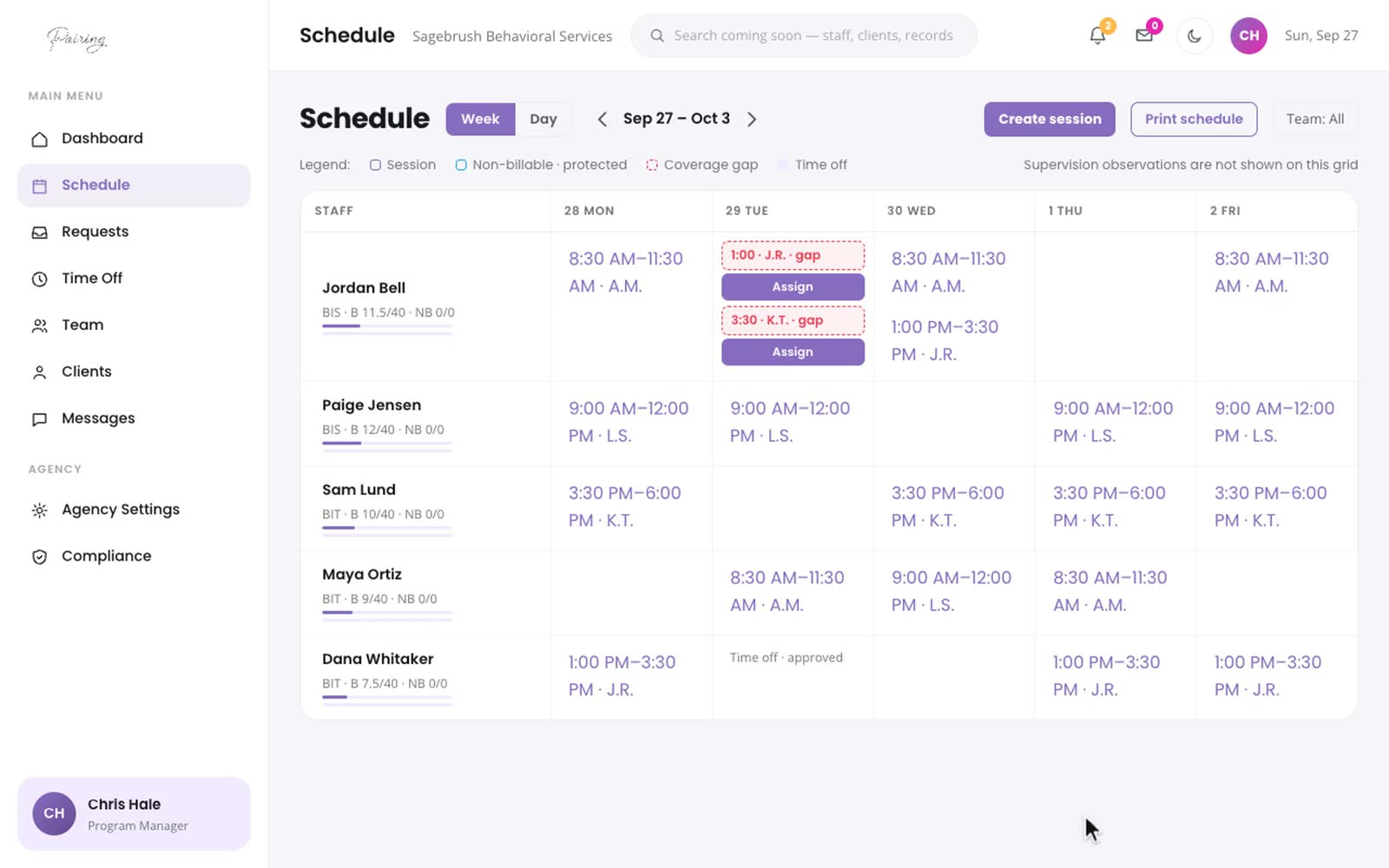
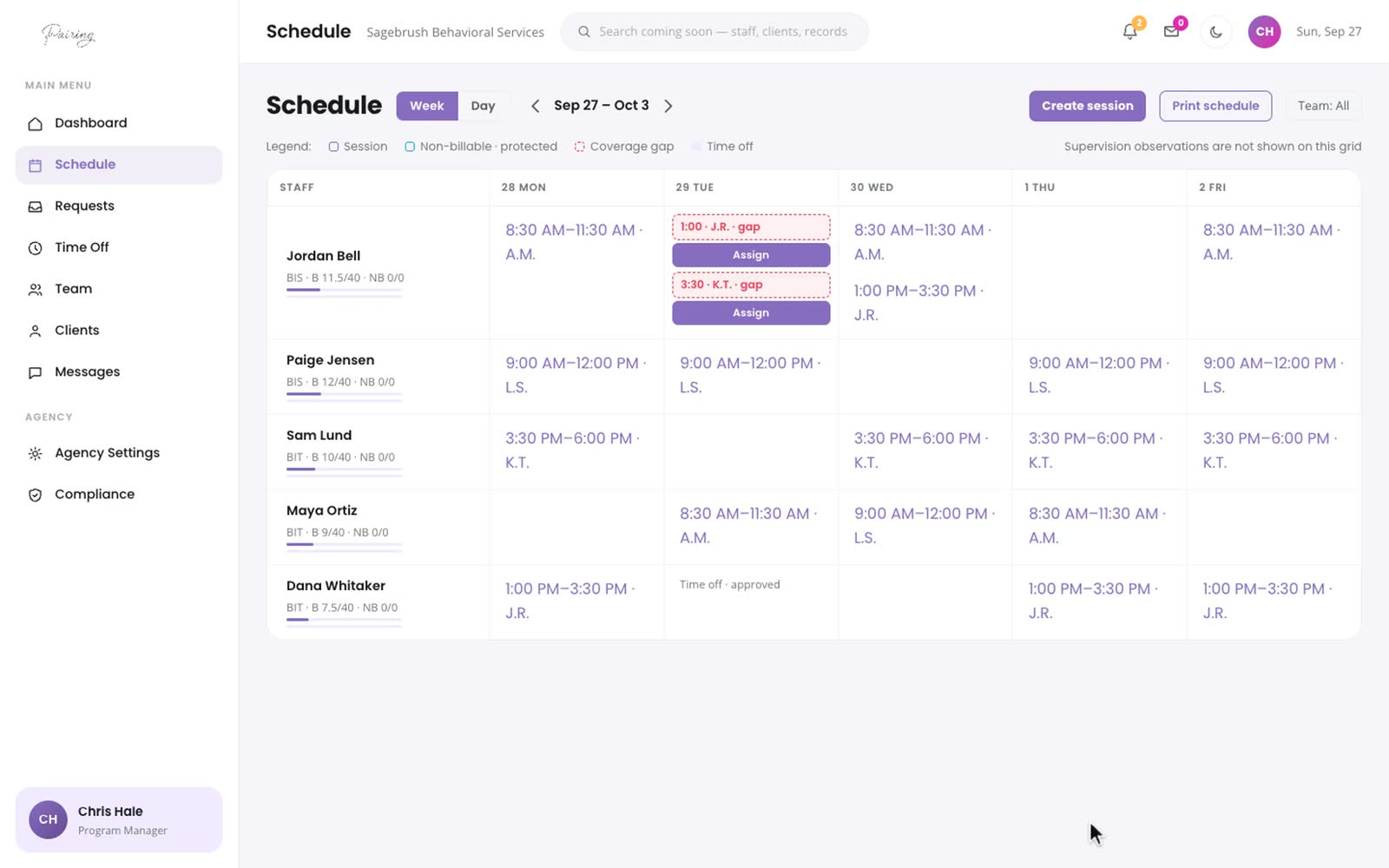
The whole week on one screen, with open sessions in red.
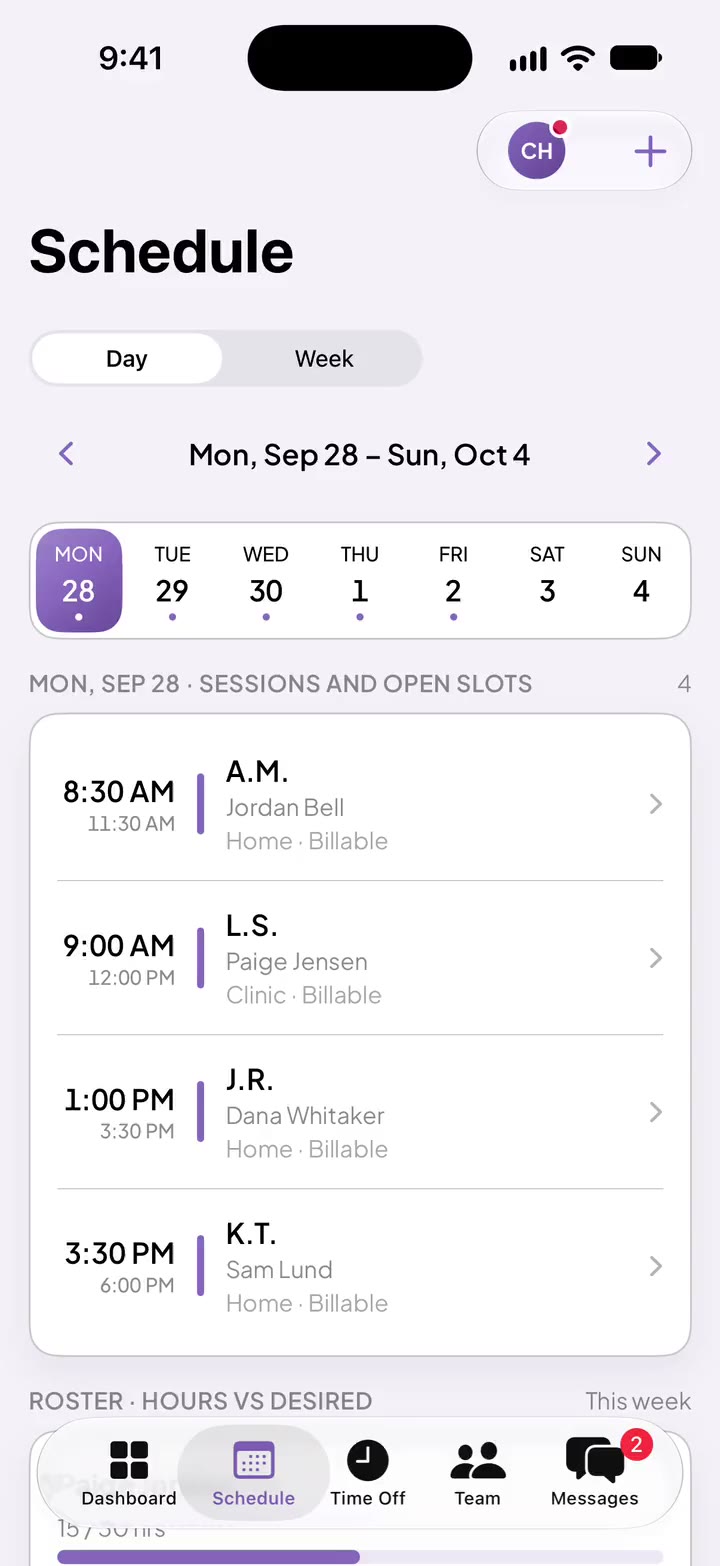
Every child and every session for the week, with the BI working each one. An open session stands out on the weekly schedule, and you can cover it from right there. On iPhone, the day shows each open slot at a glance.
Day and week
Switch between the day and the week, on the web and on iPhone.
Repeating sessions
Set a session once as weekly, then change that one day, or that day and every one after it.
Time off on the schedule
Approved time off appears on the schedule, so you can plan cover before the day arrives.
Print it
Print the schedule by BI, by child or for everyone.
02 · Covering a session
Cover an open session in a few clicks.
Open the session and Pairing suggests BIs to cover it, ranked, with how the session changes each person's hours for the week. The first time a BI works with a child, Pairing asks whether they've completed participant specific training (PST) for that child and records the answer.
Suggested BIs
A ranked list to start from, or choose anyone yourself.
Hours before you assign
See each BI's billable hours for the week, before and after the session.
PST check
Trained, scheduled but not held yet, or not trained. The answer goes in the PST log.
One change, every view
The new assignment shows on the week, the BI's day and the family's view.
03 · Time off
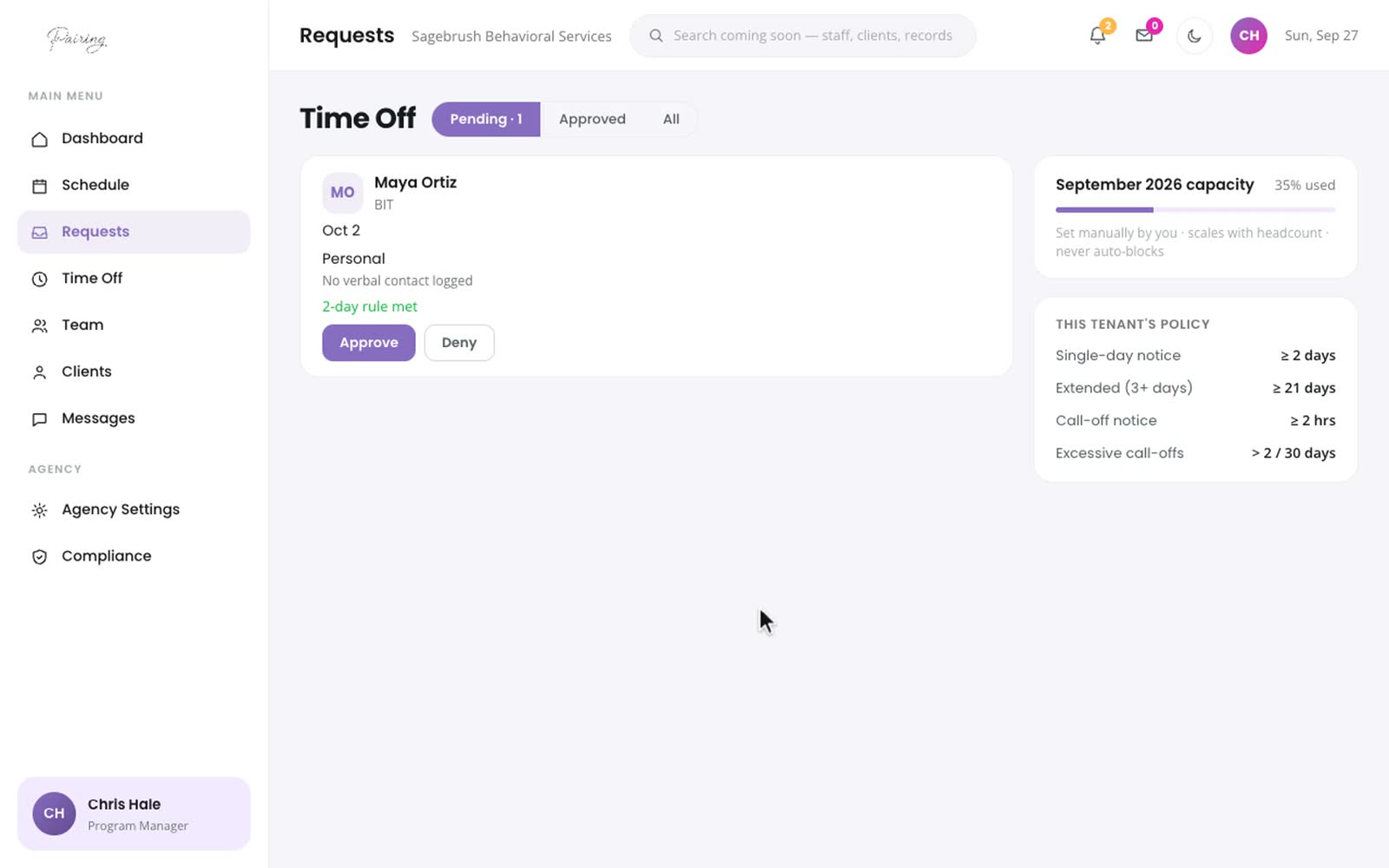
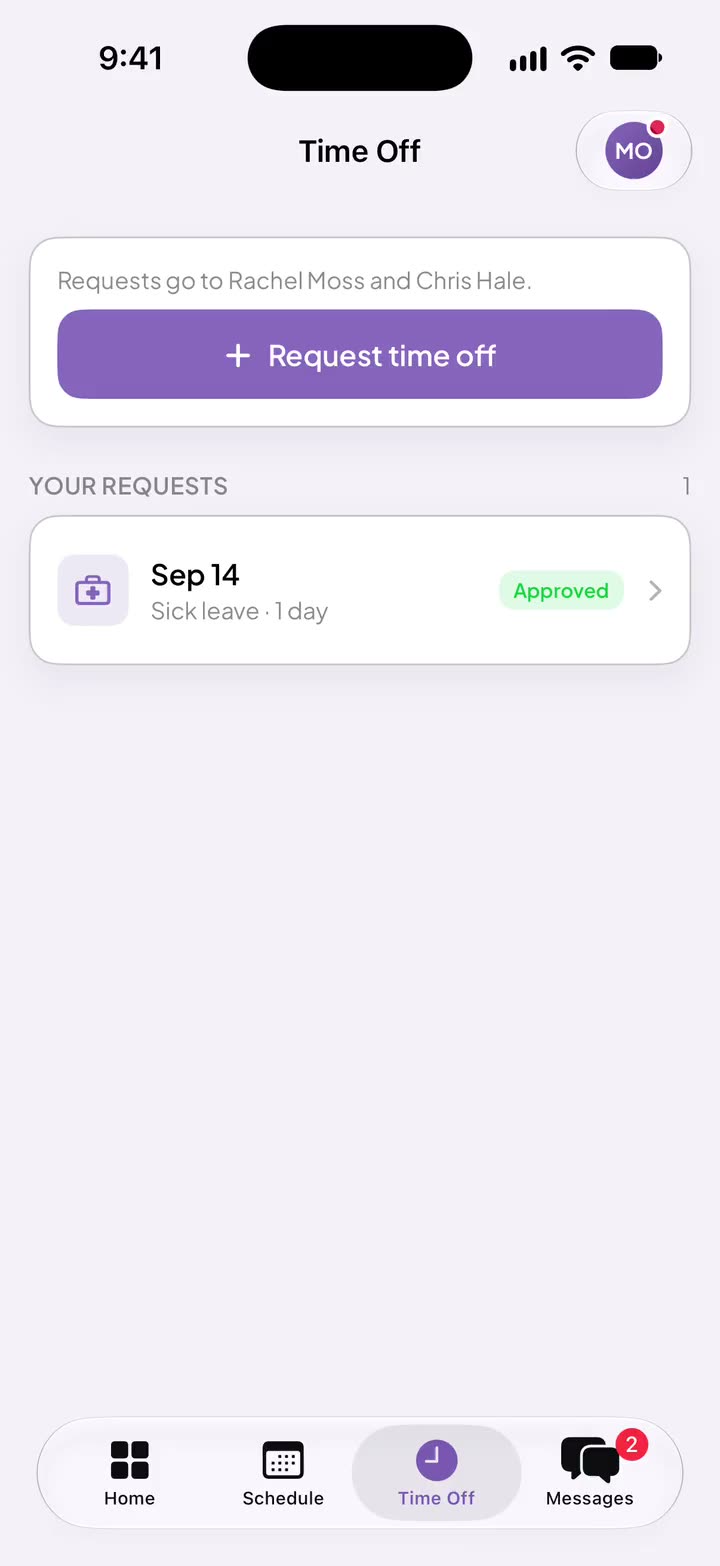
Time off requests in one queue.
BIs ask for time off from their iPhone or the web after they check with their supervisor. Requests land in one queue with the dates and the reason. Approve them, or decline with a note, and approved time off shows on the schedule.
One queue
Pending, approved and past requests, each with its dates and reason.
Supervisor check first
Each request records who the BI spoke with before asking.
Your policy, your numbers
Set your own notice windows for a single day off and for longer leave.
Decline with a note
Say why, so nobody has to guess.
04 · Supervision
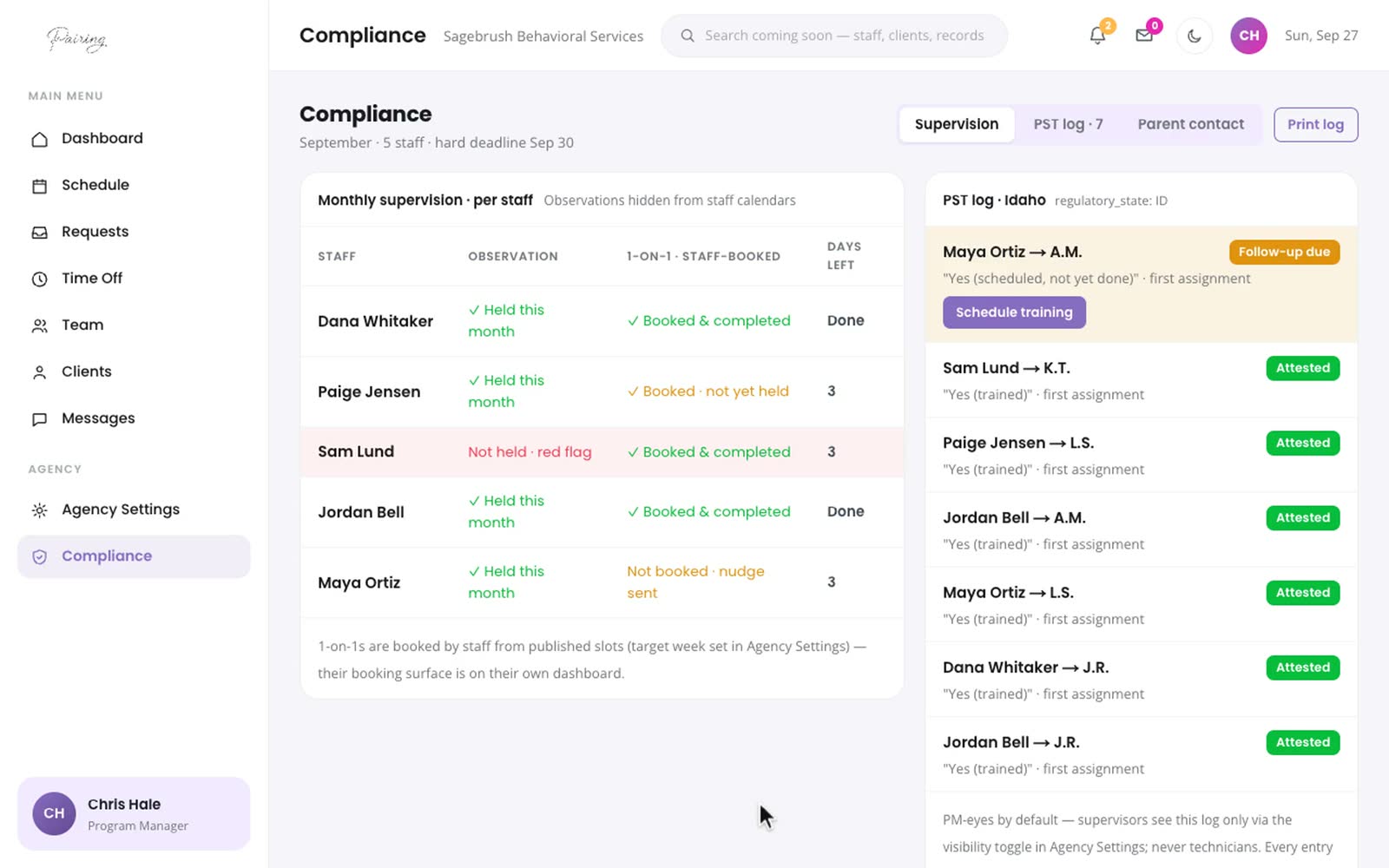
See where every BI's supervision stands this month.
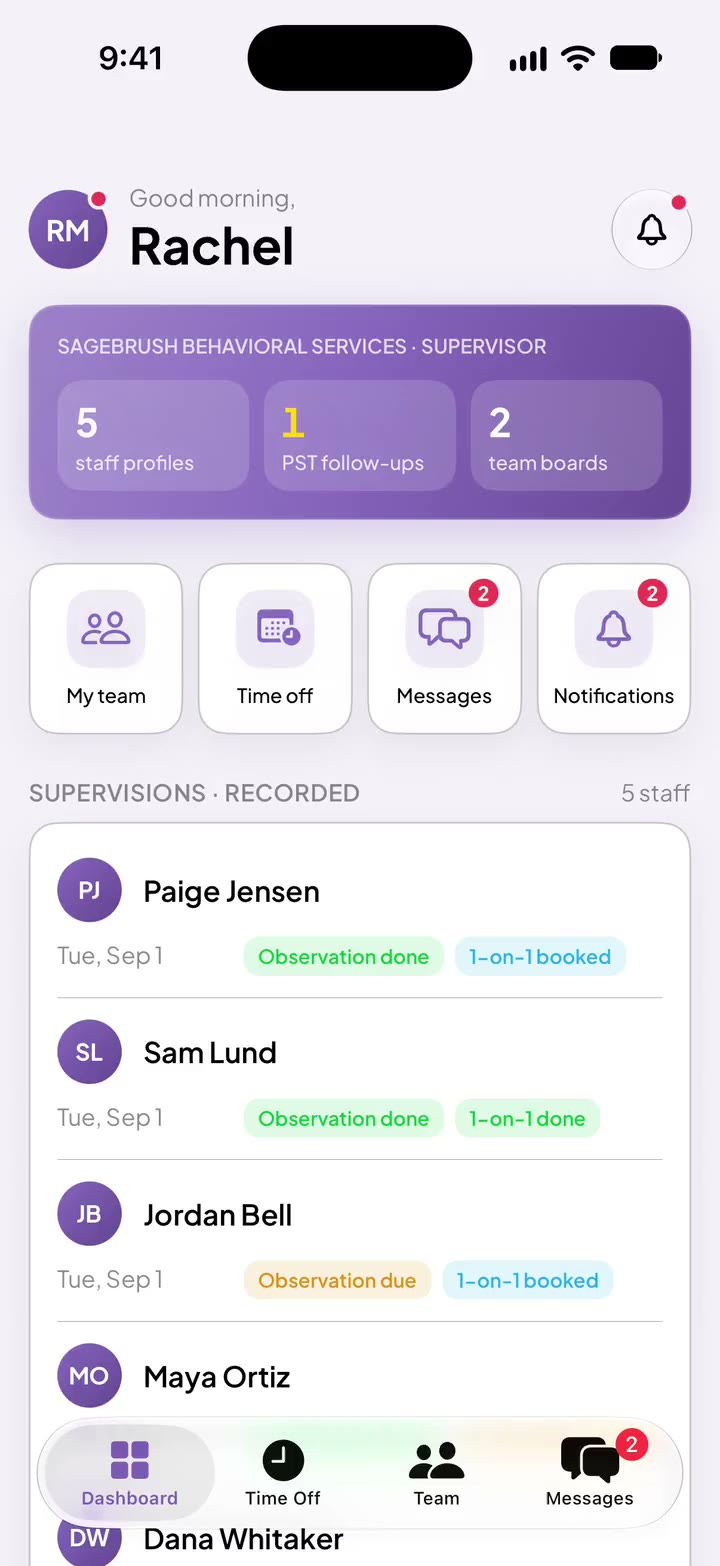
Supervisors and program managers see whether each BI's observation was held this month and whether their 1-on-1 is booked or held. The PST log sits on the same page.
By team
Supervisors see their own team. Program managers see the whole agency.
Days left in the month
The table counts down to month end, so a missed observation shows up in time.
PST log
Every PST answer, with a follow-up for anyone scheduled but not yet trained.
On the phone too
Supervisors see the same status for their team on iPhone.
05 · Messages
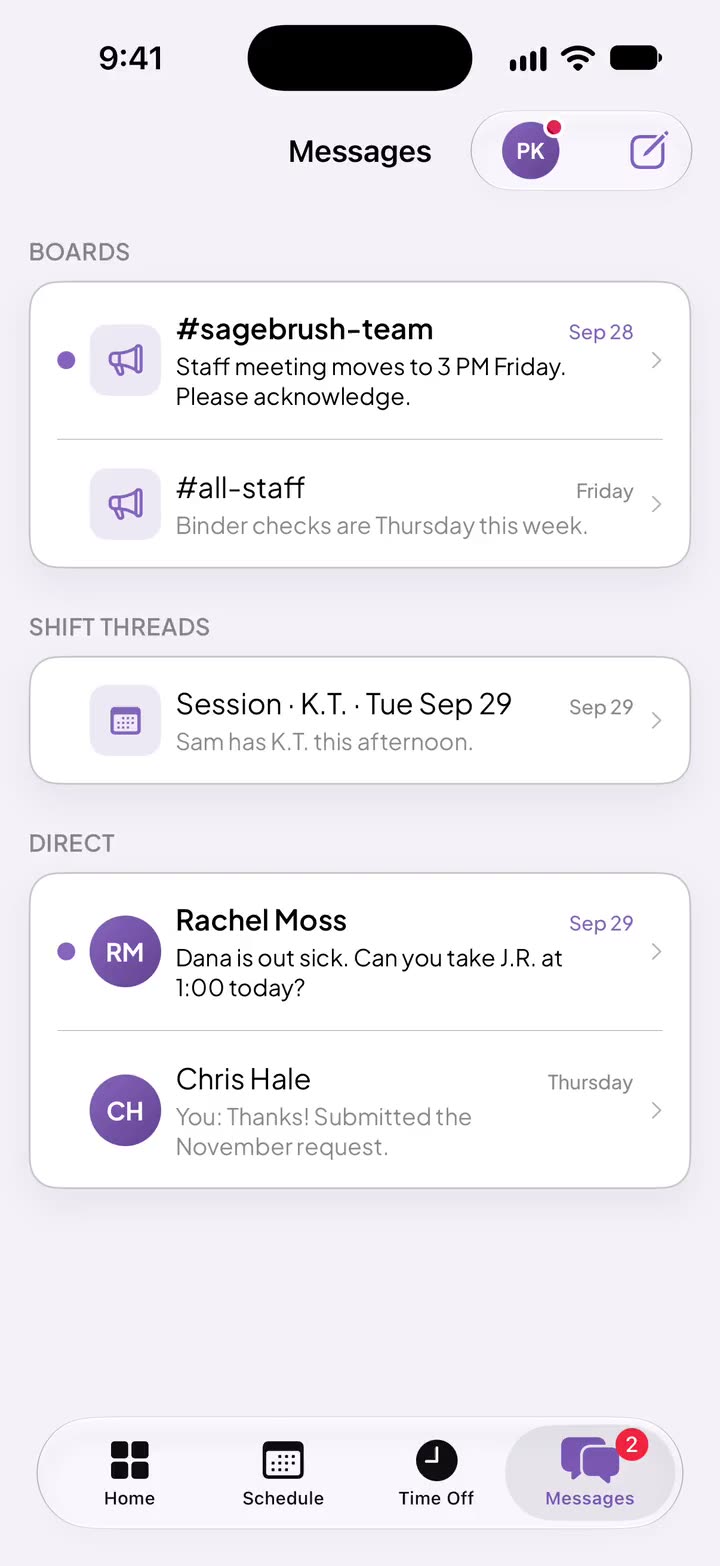
The team thread lives next to the schedule, not in a group text.
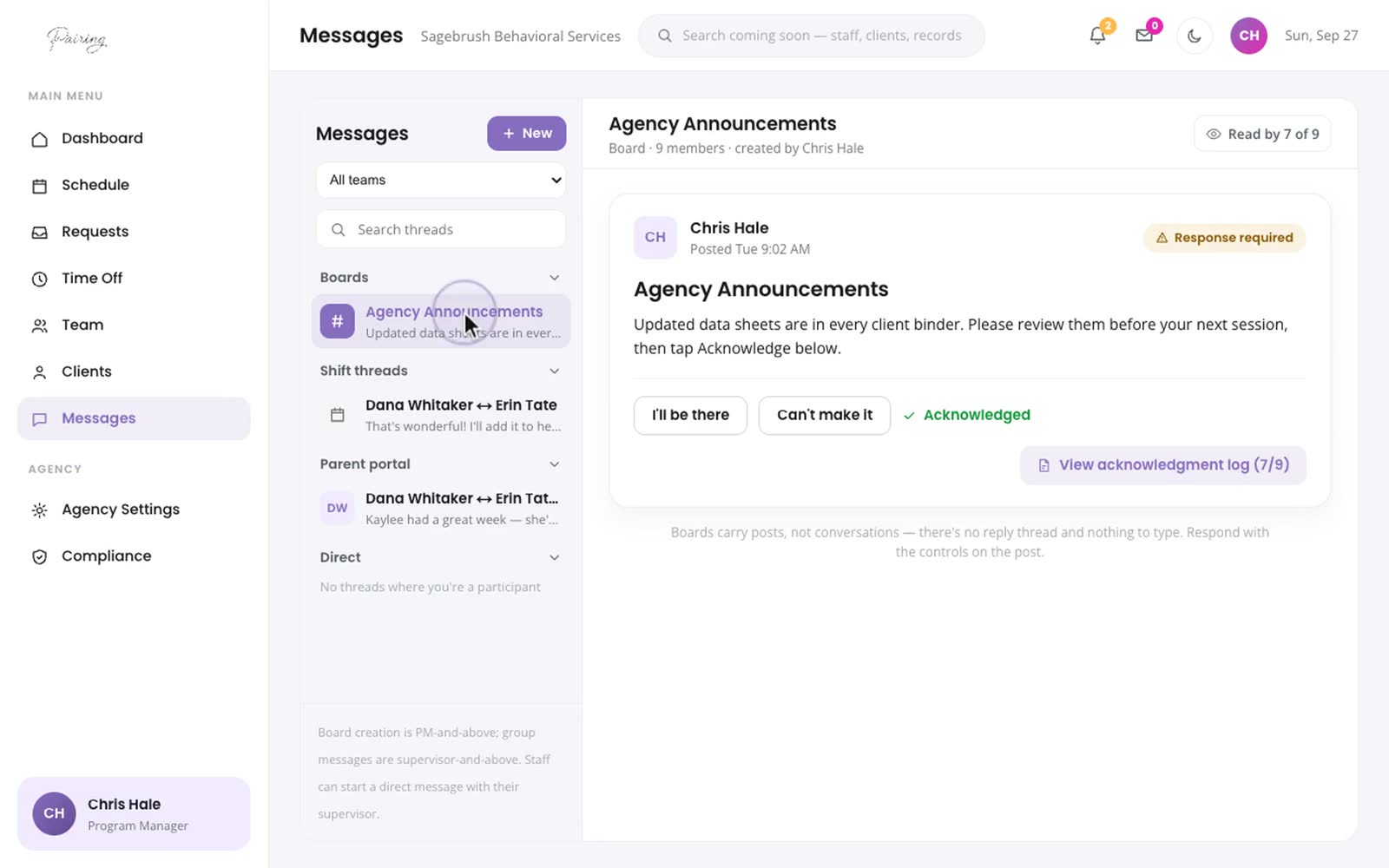
Team boards, direct messages and group threads, with read receipts so you know who has seen a change. On the web and on iPhone.
Read receipts
Sent, delivered and read, so you know who has seen it without asking.
Needs acknowledgment
Mark a board post as needing acknowledgment and see who has.
Client details stay inside
A notification says something needs you. The details appear after you sign in.
Web and iPhone
The same threads at a desk or in the car between sessions.
06 · Families
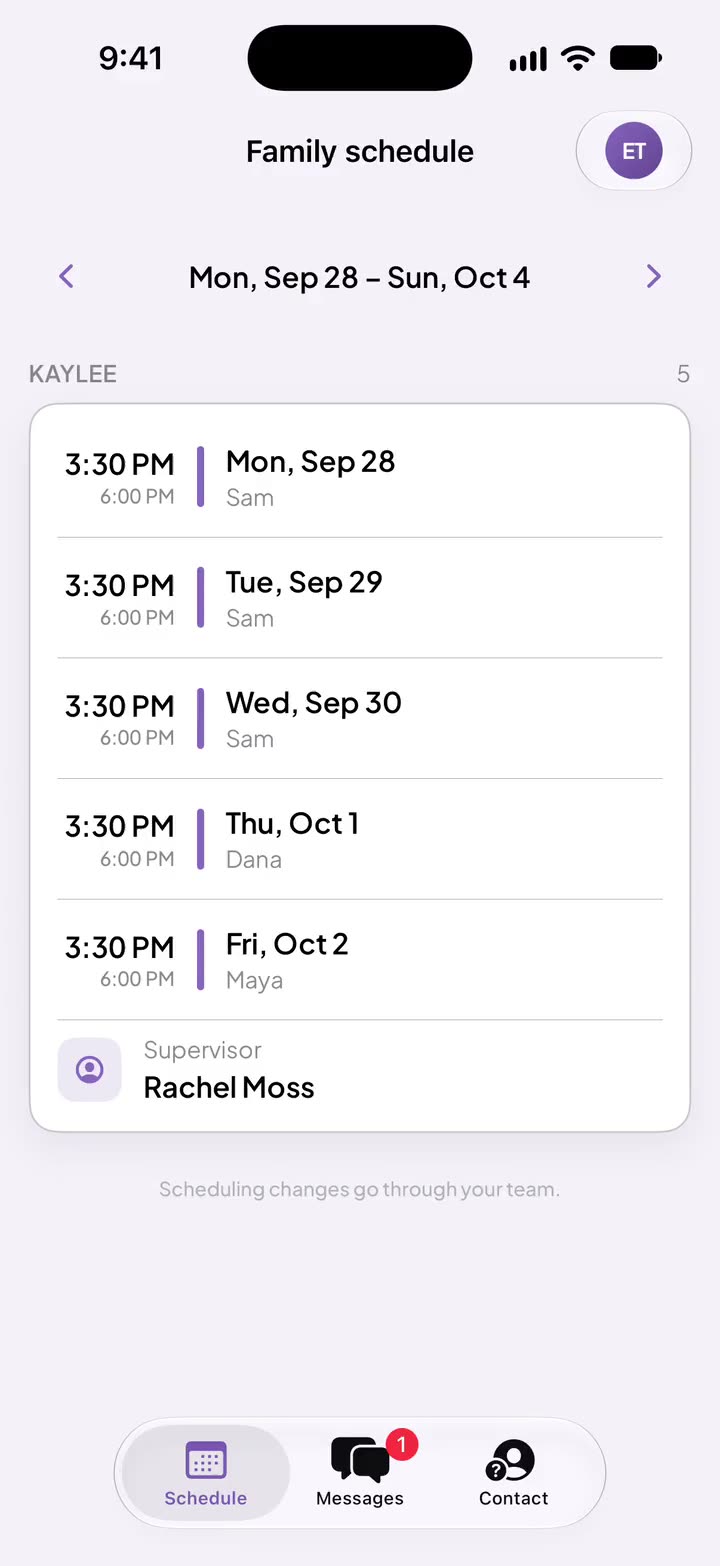
Parents see their own child's week, and can reach you.
A parent sees their child's sessions for the week and the BI coming to each one, and can message your team. They see nothing about any other child.
Included at no extra cost. It's optional: your agency turns it on for everyone or child by child.
07 · BIs
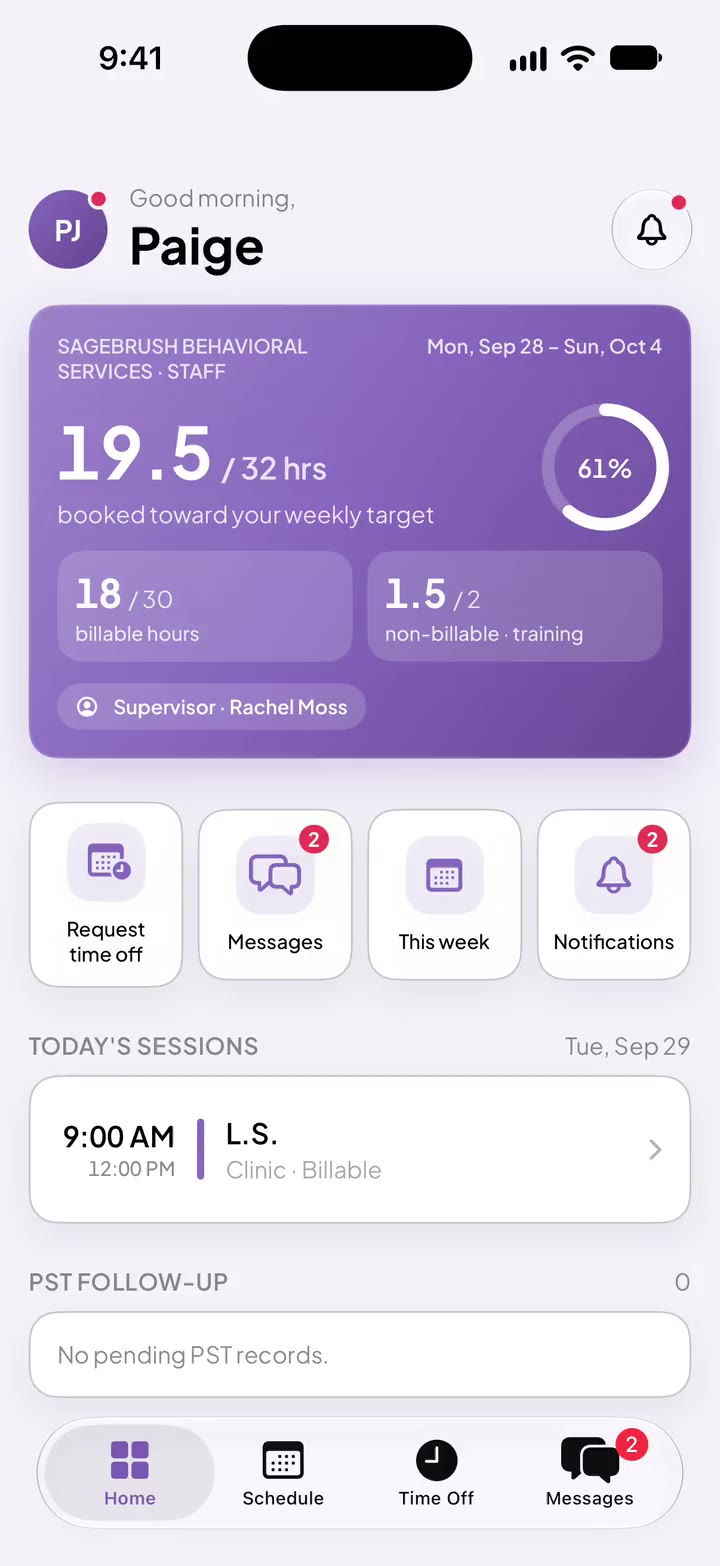
A BI's day, their hours and their messages.
BIs open the app and see today's sessions and their hours toward their weekly target. Time off and messages are one tap away.
08 · Your agency
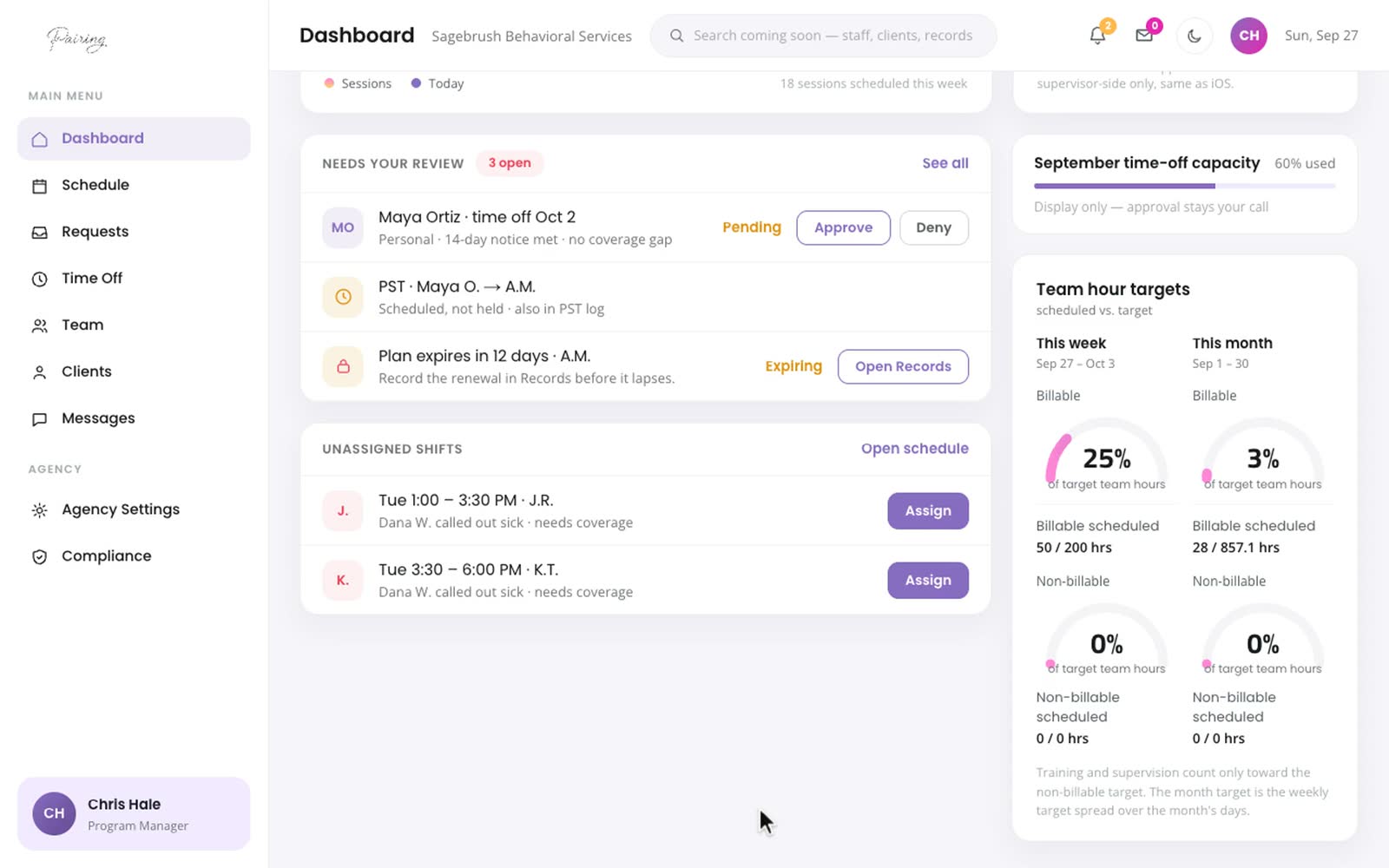
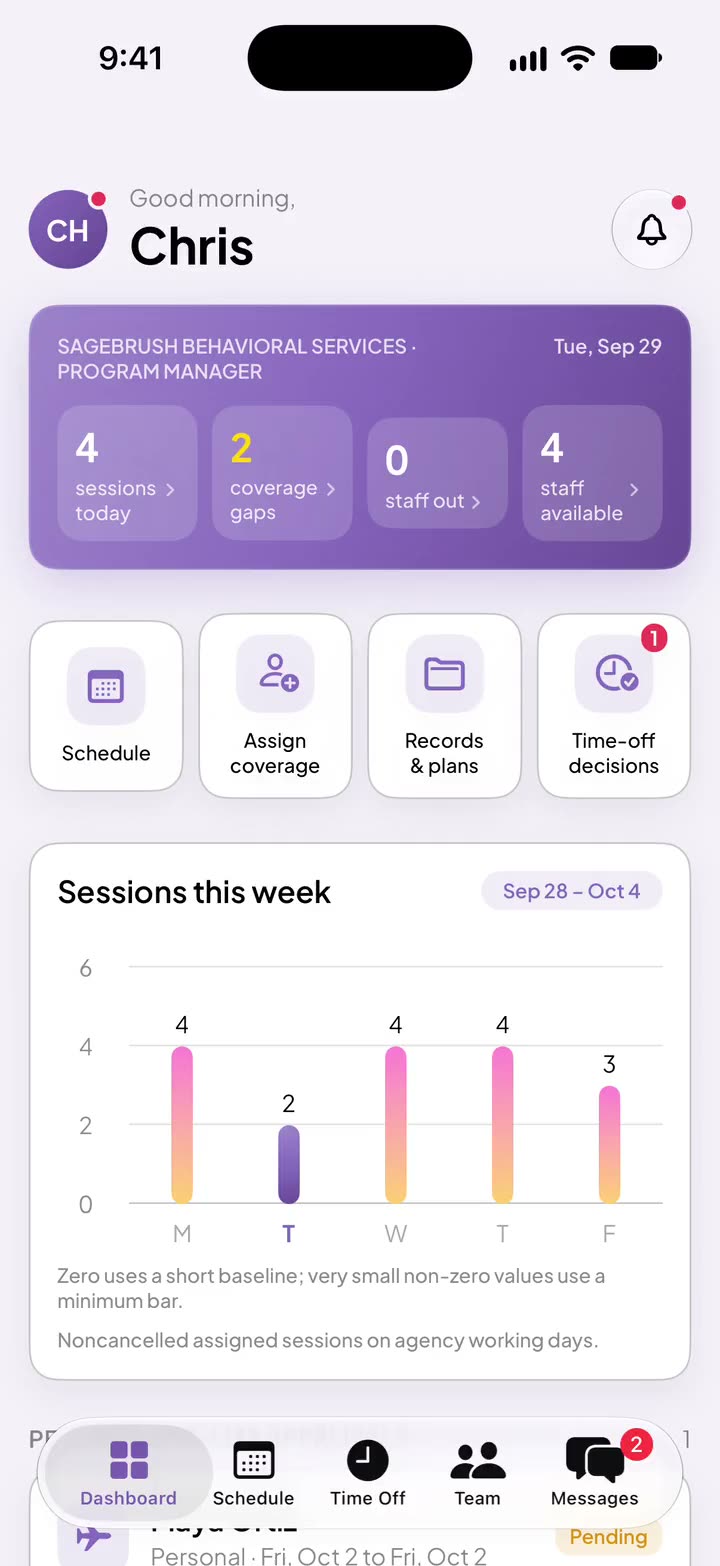
Set up for how your agency works, with each person seeing what their job needs.
Pairing flags a treatment plan 30 days before it expires. Once a plan lapses, no new session can be booked or assigned for that child until the new plan is recorded.
Your logo and color
Pairing takes on your agency's look.
Roles, not one login
Directors, program managers, supervisors, HR, BIs and parents each see their part.
Invite only
Nobody gets in unless your agency invites them.
When someone leaves
Deactivate them and their access ends, while their history stays.
Treatment plan dates
A heads-up 30 days out, and no new sessions on an expired plan.
Staff and client records
BI credentials and reporting lines, client plans and portal settings.
Coming soon
What's next for Pairing.
If one of these would make a difference at your agency, tell us.
Calendar sync
Coming soon
Sessions in the Google or Outlook calendar your BIs already use.
Android app
Coming soon
Pairing works in the browser on Android phones today.
iPhone app
In development
The iPhone app is in testing now, and the App Store listing comes after that.
A director's view
Under consideration
Coverage, hours and supervision across the whole agency, on one screen.
Tell us which of these would matter to you →
The Android robot is reproduced or modified from work created and shared by Google and used according to terms described in the Creative Commons 3.0 Attribution License.